1. The Main Screen
When you first open Nudgeli, your list is empty and you'll see an encouraging "All Clear!" message rather than a blank, judgmental void.
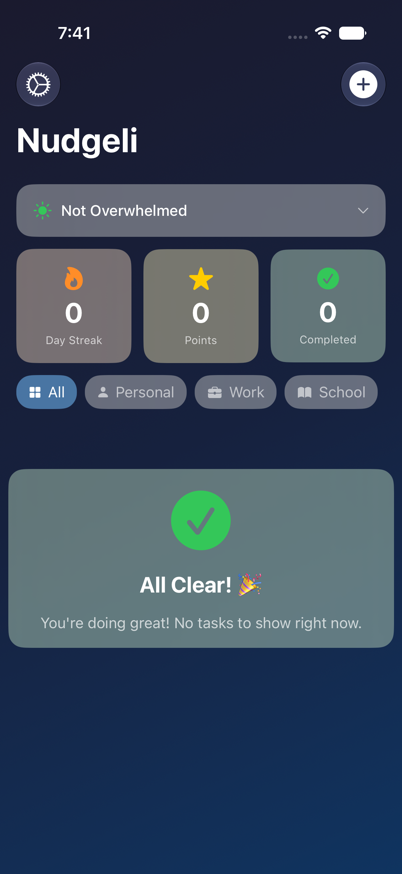
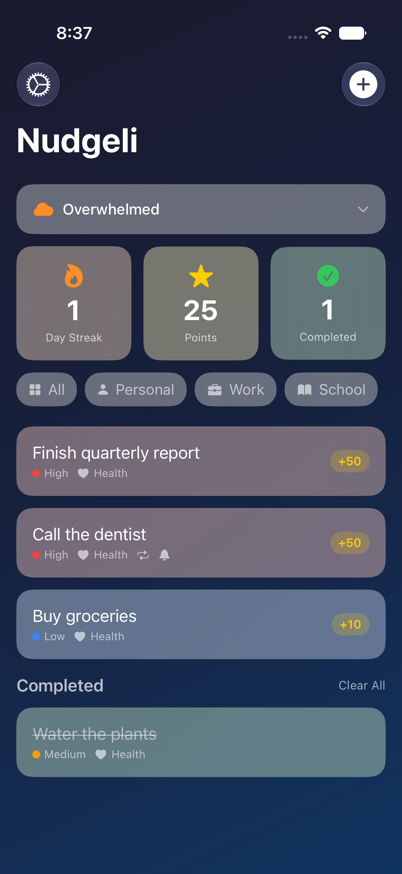
From top to bottom, the main screen always shows:
- Settings (gear icon, top-left) and Add Task (+, top-right)
- Your current overwhelm level button (starts as "Not Overwhelmed")
- A stats bar: current day streak, total points, and tasks completed
- A horizontal row of context filters (All, Personal, Work, School, Shopping, Health, Social, Home, Errands)
- Your task list, split into active tasks and a "Completed" section further down
2. Adding a Task
Tap the + button in the top-right corner to open the Add Task sheet.
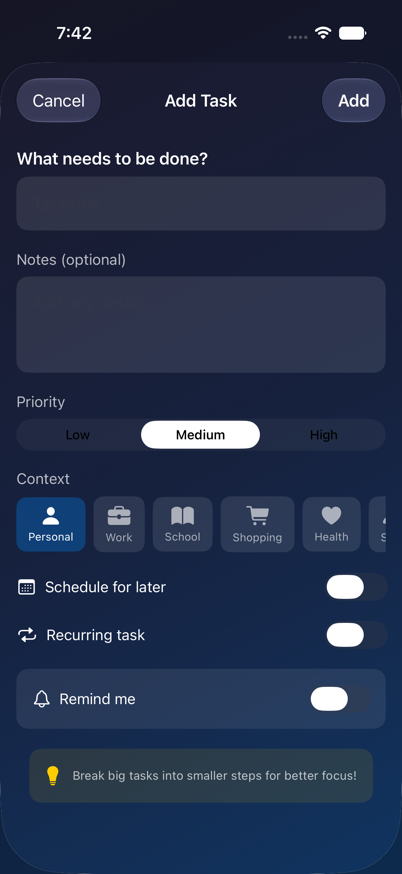
Type a title, and optionally some notes. Then choose a priority (Low / Medium / High — this also sets how many points the task is worth) and a context tag from the horizontal list.
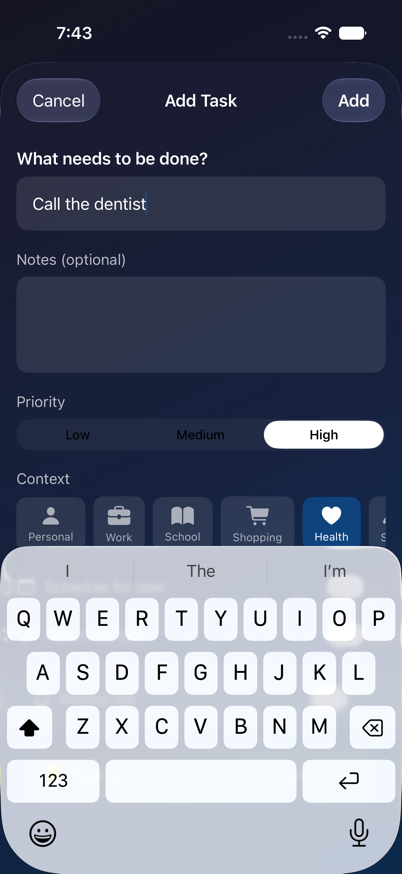
Tip: the context chip that's pre-selected here matches whichever context filter you last tapped on the main screen. If your list is currently filtered to "Health," new tasks will start out tagged "Health" too — just tap a different chip before saving if that's not what you want.
Scrolling down reveals two more sections:
- Recurring task — turn this on to repeat the task on a schedule (Daily, Weekly, Bi-weekly, Monthly, Weekdays, Weekends, or a Custom interval like "every 3 days")
- Remind me — turn this on to get repeating local notifications for the task, with a cadence slider (every 15–180 minutes), a start/end hour window, and a "remind on weekends" switch
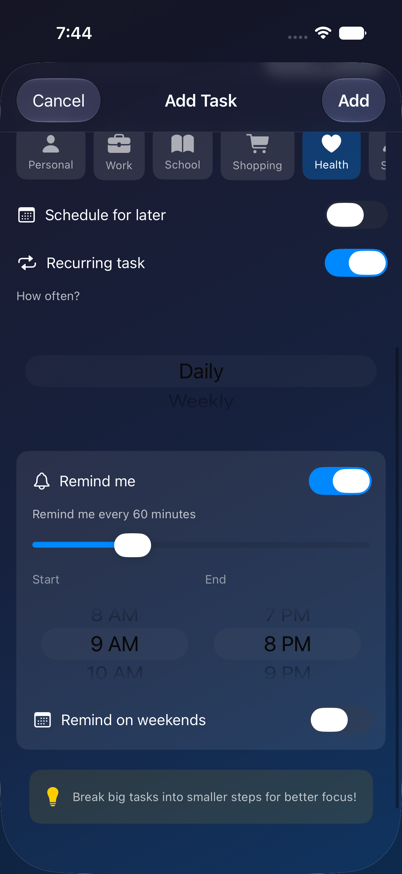
Tap Add in the top-right to save the task, or Cancel to discard it.
3. Your Task List
Once you've added a few tasks, the main screen fills in.
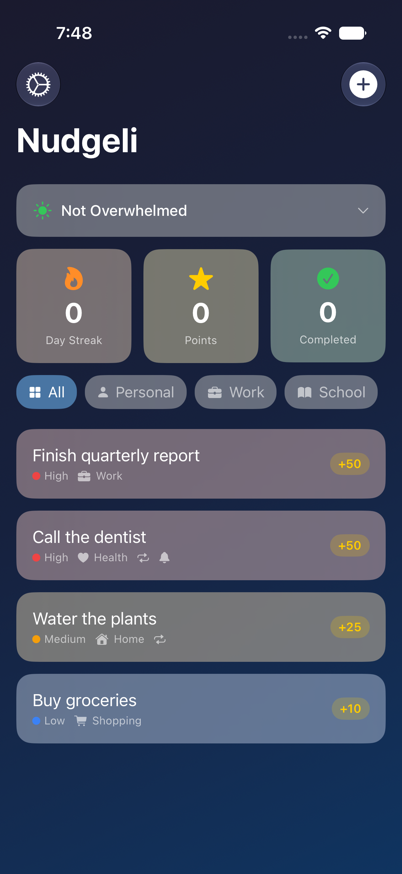
Each row shows the task's title, a colored priority dot, its context icon, small badges for recurrence and reminders, and a points badge on the right.
Filtering by context
Tap any chip in the horizontal filter row (Personal, Work, Shopping, etc.) to show only tasks in that context. Tap All to clear the filter.
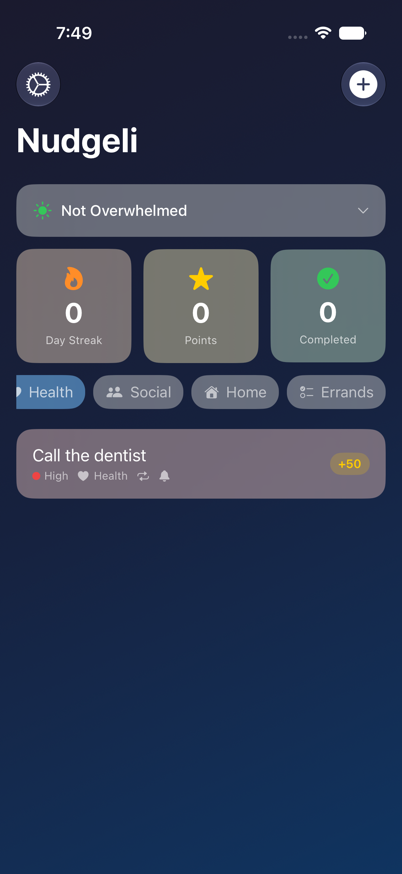
4. Viewing Task Details
Tap anywhere on a task row (without swiping) to open its full details: priority, context, recurrence, reminder schedule, points, notes, and timestamps for when it was created and last modified.
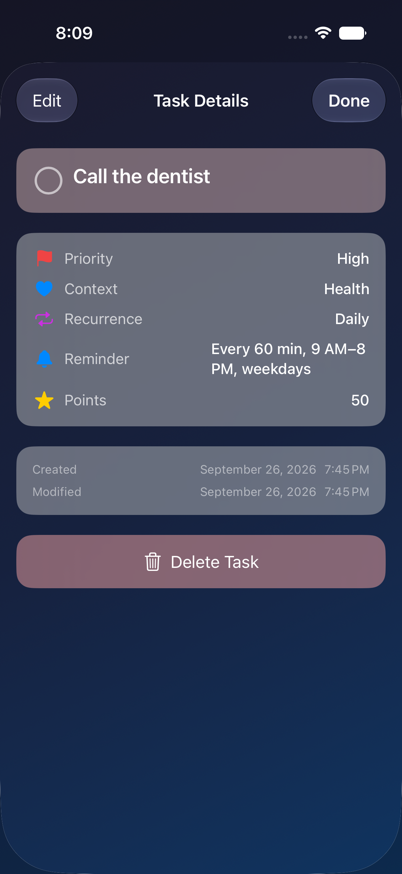
From here you can:
- Tap the circle next to the title to mark it complete/incomplete
- Tap Edit (top-left) to change any of its fields
- Tap Delete Task at the bottom to remove it (with a confirmation)
- Tap Done (top-right) to close
5. Editing a Task
Tap Edit from the Task Details screen to open the same form used for adding a task, pre-filled with the task's current values.
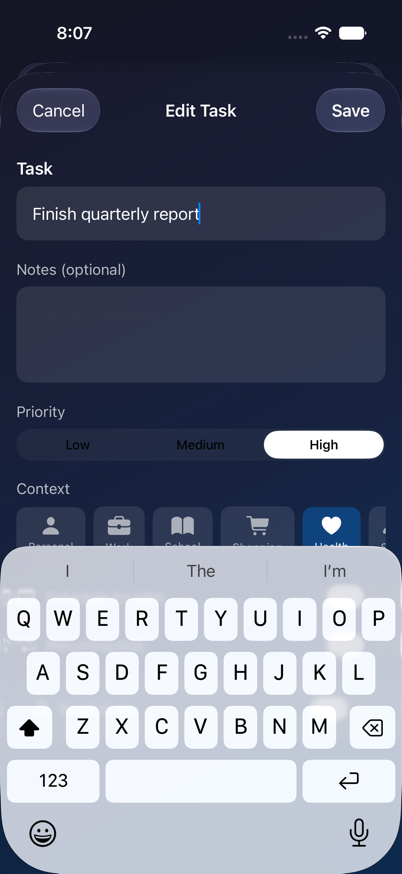
Make your changes and tap Save, or Cancel to discard them.
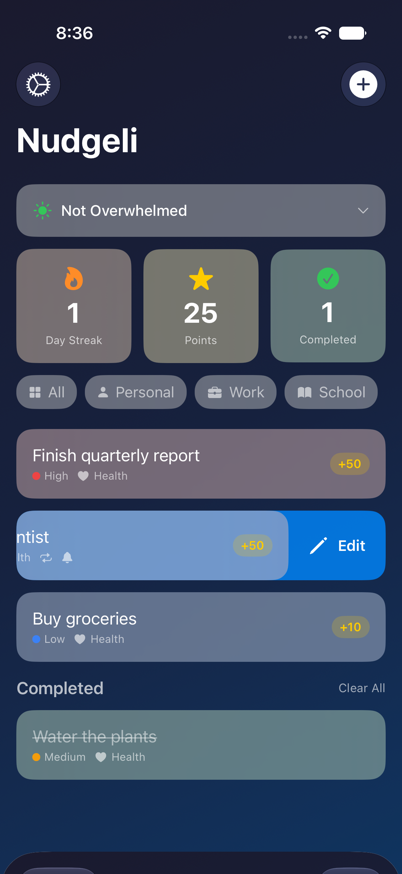
Shortcut: swipe to edit
You don't have to open Task Details first. On the main list, swipe a task row left a short distance to reveal a blue Edit action — release, and the Edit form opens directly.
6. Completing (and Un-completing) a Task
Swipe a task row right to mark it complete. You'll feel a haptic tap, and the task moves into the Completed section at the bottom of the list with its title struck through — your streak, points, and completed count all update immediately.
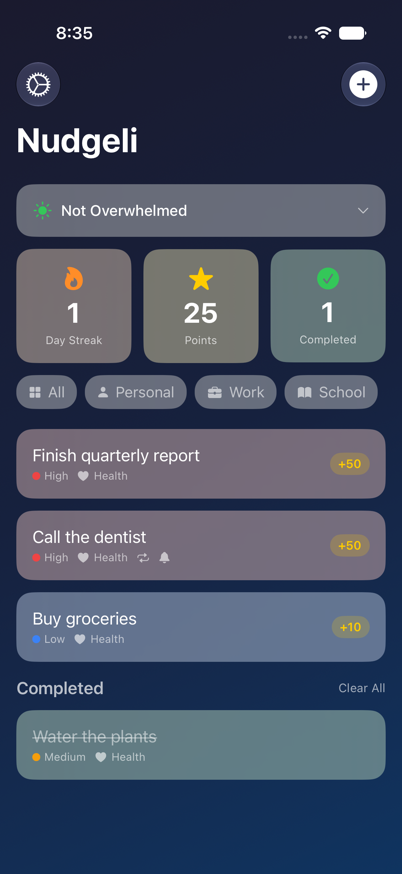
Swiping a completed task right again un-completes it (in case you jumped the gun).
Completed tasks stick around until you tap Clear All above the Completed section, or delete them individually.
7. Deleting a Task
To delete a task without opening it first, swipe further left past the Edit action — once you've swiped roughly halfway across the row, it escalates to a red Delete action. Releasing there (or tapping Delete Task from the Task Details screen) brings up a confirmation.
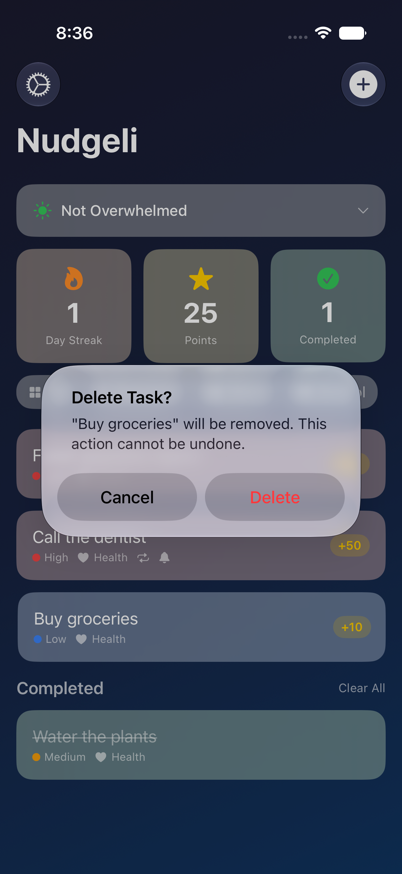
Tap Delete to confirm, or Cancel to keep the task. Deletion cannot be undone.
8. Recurring Tasks
Any task can repeat on a schedule. Turn on Recurring task in the Add/Edit form and pick a pattern:
| Pattern | Behavior |
|---|---|
| Daily | Repeats every day |
| Weekly | Repeats every 7 days |
| Bi-weekly | Repeats every 14 days |
| Monthly | Repeats every calendar month |
| Weekdays | Skips weekends |
| Weekends | Only Saturday/Sunday |
| Custom | Repeat every N days/weeks/months — you choose the number and unit |
Nudgeli tracks the last time a recurring task was completed so it doesn't pile up duplicate reminders.
9. Reminders
Turn on Remind me in the Add/Edit form to get repeating local notifications for a task. You control:
- Cadence — how often the reminder repeats, from every 15 minutes up to every 3 hours
- Start/End hour — the window of the day during which reminders are allowed to fire (so you're not pinged at 2 AM)
- Remind on weekends — off by default, so weekday-only routines don't nag you on Saturday
The first time you enable a reminder, iOS will ask for notification permission — allow it if you want the reminders to actually show up.
10. Breaking Down an Overwhelming Task
If a task sits incomplete for 5 or more days in a row, Nudgeli notices and offers to help. Opening that task's details will show a "Having trouble with this task?" prompt with a Break Down Task button. Tapping it opens a screen where you can split the task into 2 or more smaller steps (with tips like "make each step 15 minutes or less"), which creates them as subtasks under the original task.
This screen only appears once a task has been stuck for several days, so it isn't pictured here — but you'll recognize the yellow lightbulb prompt when it shows up.
11. Managing Overwhelm
Tap the pill near the top of the main screen (it shows your current level, e.g. "Not Overwhelmed") to open the overwhelm picker.
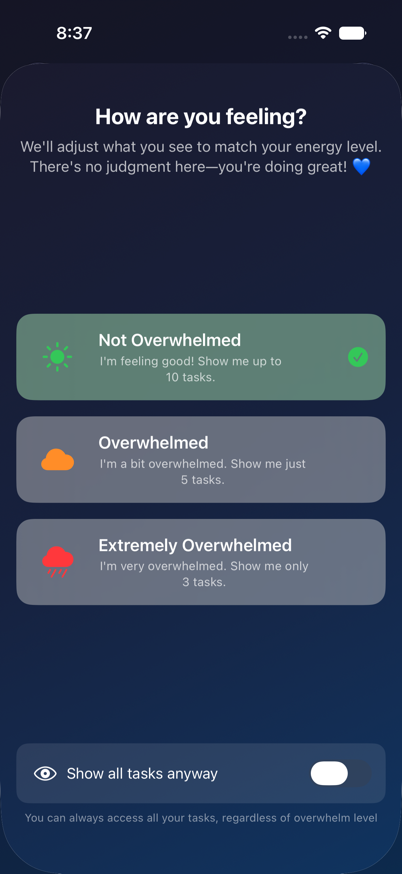
Pick whichever matches how you're feeling right now:
- Not Overwhelmed — shows up to 10 tasks
- Overwhelmed — shows just 5
- Extremely Overwhelmed — shows only 3
This doesn't delete or hide your other tasks permanently — it just trims what the main list shows you at once, so a long list doesn't add to the pressure. Flip on Show all tasks anyway at the bottom of this screen (or in Settings) if you'd rather always see everything regardless of level.
12. Settings & Your Progress
Tap the gear icon (top-left) to open Settings.
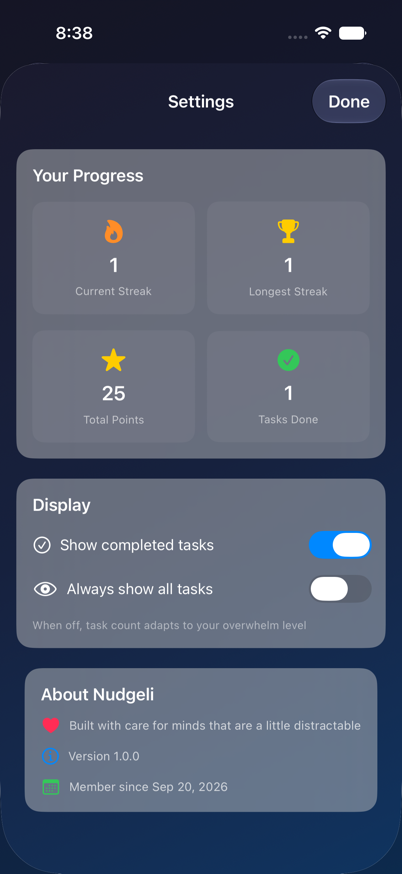
Here you can see:
- Your Progress — current streak, longest streak ever, total points, and total tasks completed
- Display — toggle whether completed tasks are shown, and whether to always show all tasks regardless of overwhelm level
- About Nudgeli — app version and the date you started using the app
13. About Points and Streaks
Every task is worth points based on its priority when you created it:
| Priority | Points |
|---|---|
| Low | 10 |
| Medium | 25 |
| High | 50 |
Your streak counts consecutive days on which you've completed at least one task. Complete something every day to keep it climbing; miss a day and it resets. Your longest streak is saved separately so a bad week never erases your best run.
14. Your Data
Everything you enter into Nudgeli — tasks, notes, settings, streaks, and points — is stored only on your device. There's no account to create and nothing is sent to a server. See the full Privacy Policy for details.