useSampleData developer flag is responsible for those realistic examples.1. Getting started: Onboarding
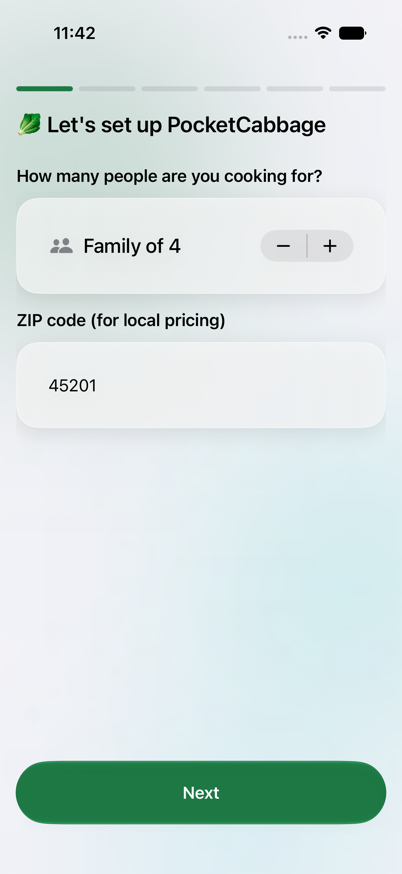
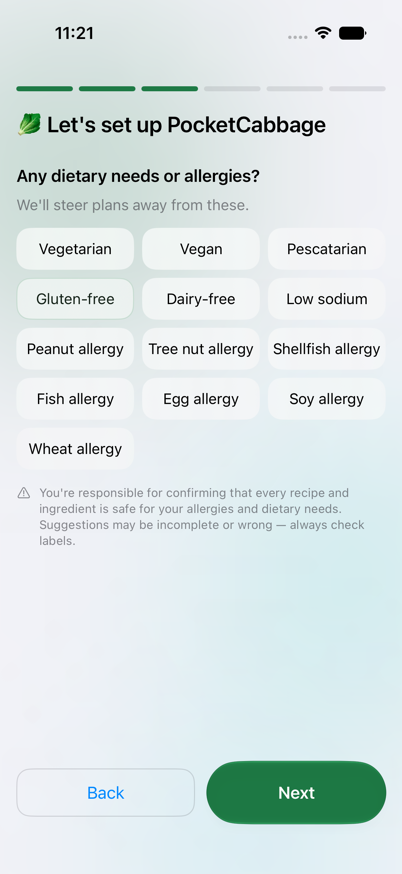
The first time you open Pocket Cabbage, a short setup wizard collects what the meal planner needs to know about your household. Each step advances with Next, and you can go Back to change an earlier answer.
| Step | What it asks |
|---|---|
| Household | Family size and ZIP code (ZIP is used to localize pricing) |
| Effort | Which meals to plan (breakfast/lunch/dinner/snack) and a prep-time ceiling for each |
| Dietary | Allergies and diets to steer every plan away from |
| Tastes | Cuisines and flavors your family leans toward |
| Stores | Which stores you shop, so their ads get scanned and compared |
| Budget | Your weekly grocery budget and how flexible it can be |
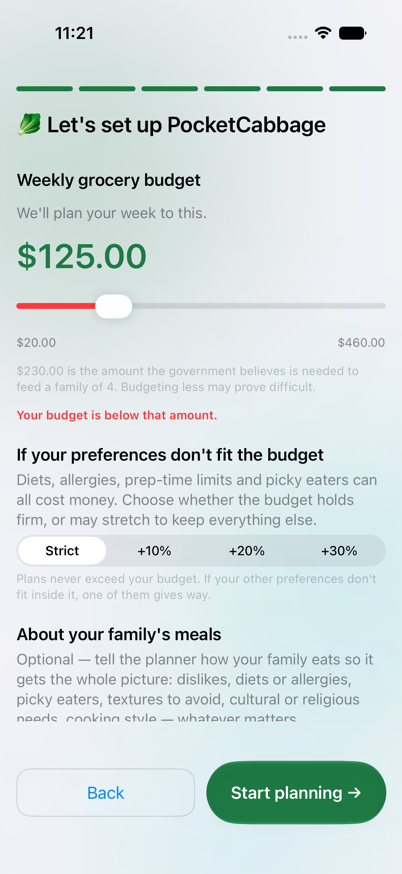
Weekly budget. The slider shows the USDA's estimated minimum cost to feed a family of your size — go below it and the app tells you plainly rather than silently shorting your plan. Budget flexibility controls whether that number is a hard ceiling (Strict) or can stretch by 10–30% when your other preferences don't fit inside it otherwise.
Tapping Start planning → on the last step saves your profile and immediately generates your first week.
2. Plan tab — your weekly meal plan
The Plan tab is the home screen and the core of the app: a photo-forward view of what to cook today and the rest of the week, each meal priced against your actual shopping list.
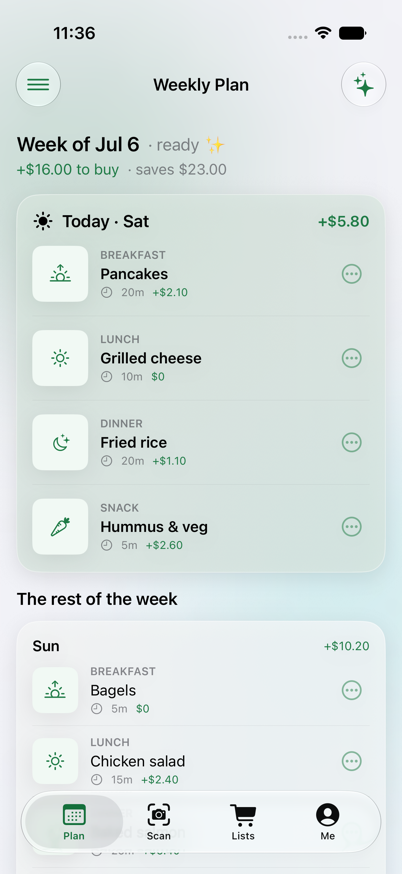
- The header shows the total left to buy and how much this week's plan saves versus not shopping the sales.
- Today is pulled out into its own card at the top.
- Each meal row shows its prep time, cost, any deal badge, and a warning if it conflicts with a household allergy.
- Tap the ✨ sparkles button to regenerate the whole week from scratch using your latest profile and pantry.
Swapping a meal
Tap the ··· menu on any meal for quick actions: view the recipe, get a new one (reroll), open the swap picker, or adjust the guest count for that meal.
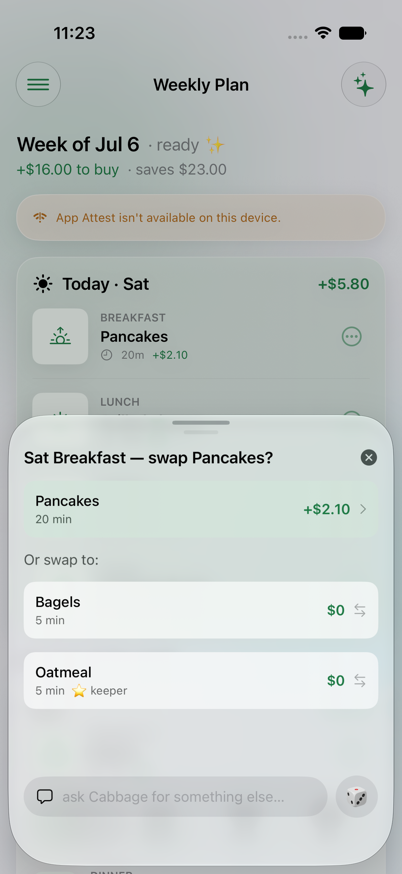
The swap sheet shows two AI-suggested alternates for that slot, each with its own cost and time. You can also type a request in the ask Cabbage for something else… field or tap 🎲 for a fresh reroll.
Recipe detail
Tapping a meal's title opens its full recipe: ingredients split into what you already own vs. what you need to buy, nutrition per serving, and numbered steps.
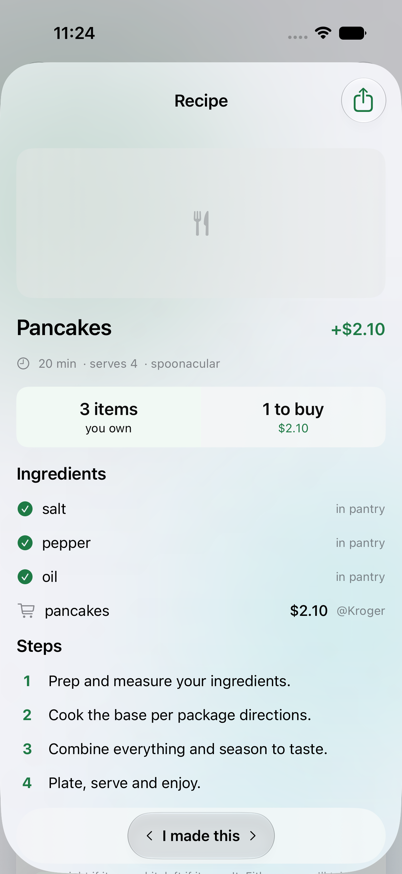
At the bottom, swipe the I made this slider right if it was a hit or left if it wasn't. Either way the ingredients you used come out of your pantry inventory and the meal moves into your 30-day archive; swiping right also saves it as a favorite in your Recipe Manager.
Cost optimizer
Near the bottom of the Plan tab, the 💰 Cost optimizer card compares every ingredient in your week across all your scanned store ads and picks the cheapest combination — including swapping a whole meal out for a cheaper one when that beats buying the original ingredients on sale.
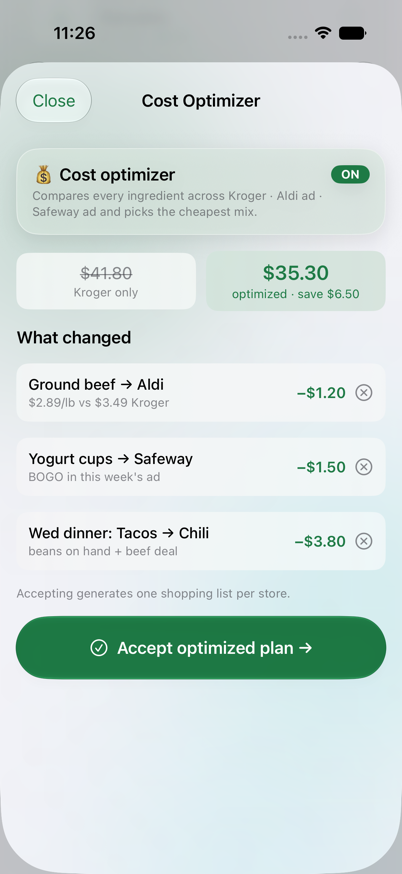
Every suggested change is individually reversible before you Accept optimized plan →. Accepting rebuilds your shopping lists, one per store.
3. Scan tab — pantry & ad scanning
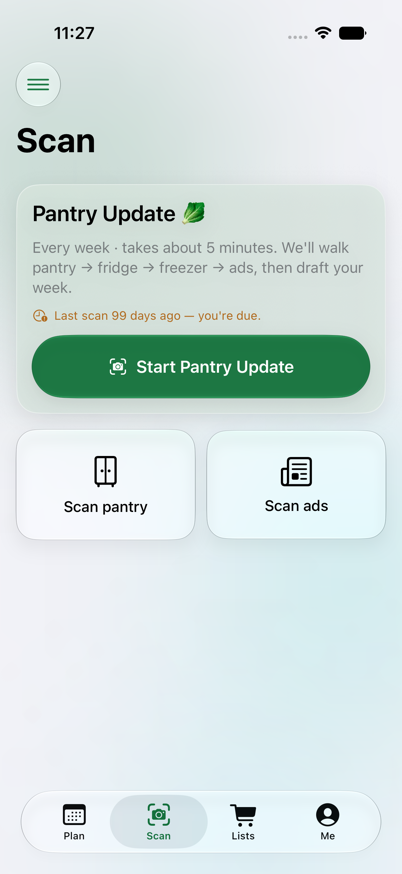
The Scan tab is where the camera-driven data entry lives — the less typing you have to do, the more useful the plan.
Pantry Update wizard
Start Pantry Update launches the guided, roughly bi-weekly refresh: Pantry → Fridge → Freezer → Ads. Each step lets you photograph a shelf (or a stack of receipts), and on-device AI identifies items and quantities for you to confirm or adjust with +/− steppers before moving on.
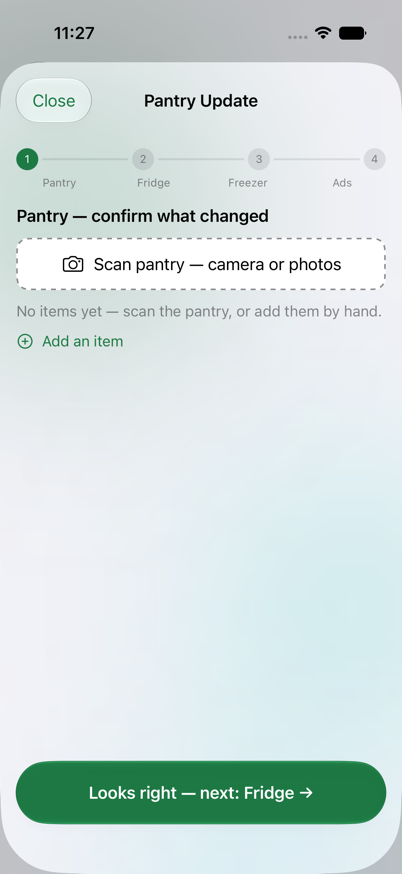
The last step scans this week's store ads and feeds straight into building a new meal plan around whatever's on sale.
One-off scans
- Scan pantry — a quick single-zone photo capture, for topping up one shelf without running the whole wizard.
- Scan ads — read a weekly flyer and see every deal it found, grouped by store, with a count of how many match things you already cook.
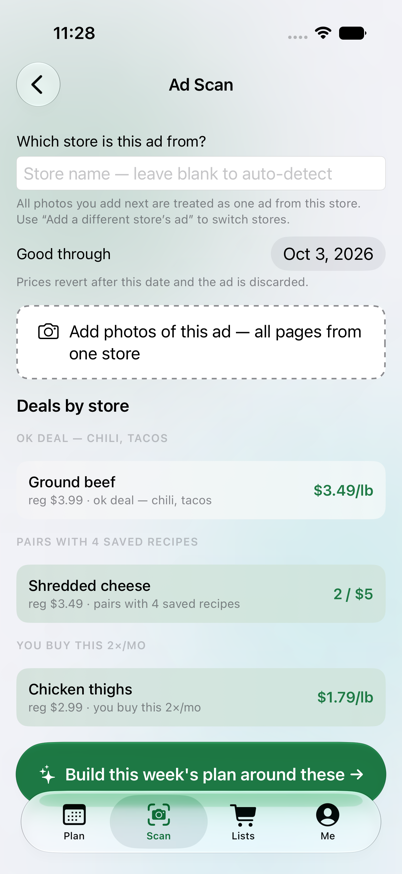
Each ad remembers a good through date; once it expires, prices built from it revert to the ordinary price and the app tells you which store's ad ran out so a jump in the shopping-list total doesn't look like a bug.
4. Lists tab — shopping lists
Once a plan exists, Lists turns it into a per-store, aisle-grouped shopping list with running totals.
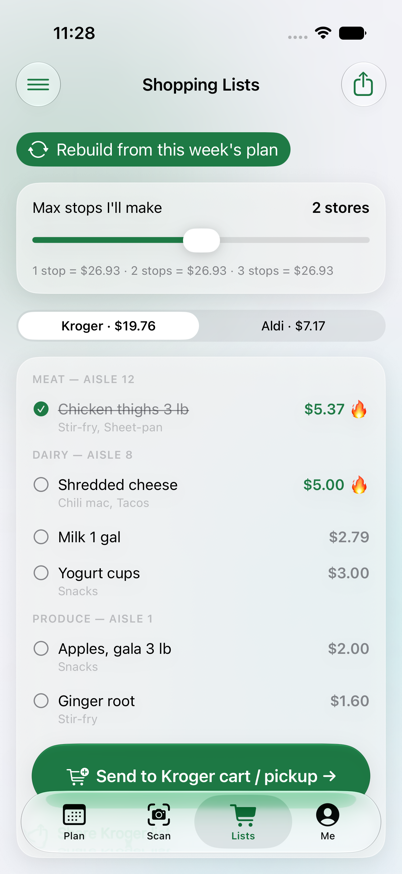
- Max stops I'll make trades convenience for savings: capping the trip at 1–3 stores rolls anything from a store you're skipping into a buy-anywhere bucket at its regular non-sale price.
- Items show their aisle, price, and a 🔥 badge when they're on sale; tap a row to check it off as you shop.
- Rebuild from this week's plan regenerates the list after you swap or reroll meals.
- Each store list has its own Share button, and stores that support it offer Send to Kroger cart / pickup.
If the list's total drifts from the plan's own total, usually because an ad expired, a note under the totals explains why.
5. Me tab — profile & settings
Me holds your household profile, preferences, and account-level tools.
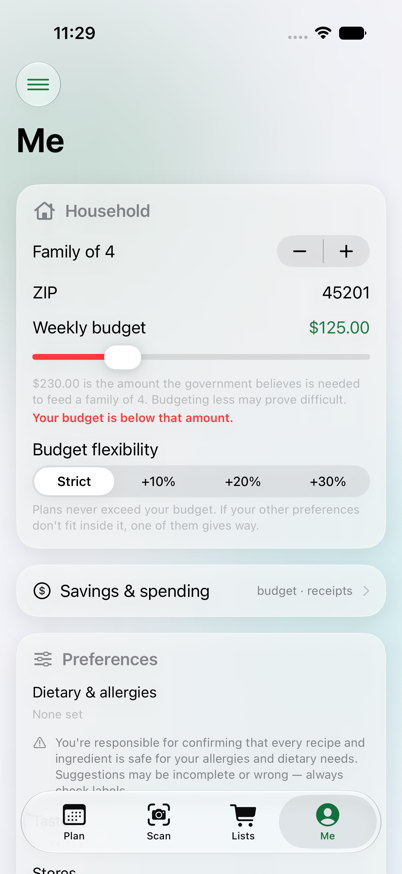
- Household — family size, ZIP, weekly budget and its flexibility.
- Preferences — dietary/allergy chips, taste chips, favorite stores, and a free-text special instructions field.
- Savings & spending — jumps to the Money dashboard.
- Meal preferences — per-meal detail: choose which meals to plan and set likes and a prep-time ceiling for each.
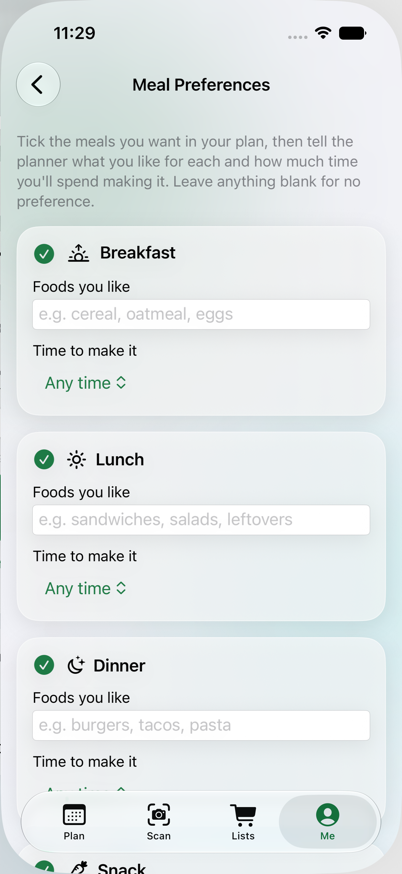
Unticking a meal type pulls it out of the current week immediately — its groceries drop off the shopping list too — without discarding anything: retick it later and any set-aside meals come back.
Recipe Manager
Every recipe you've thumbs-upped after cooking lives here, alongside any you write or import yourself as a Family Favorite.
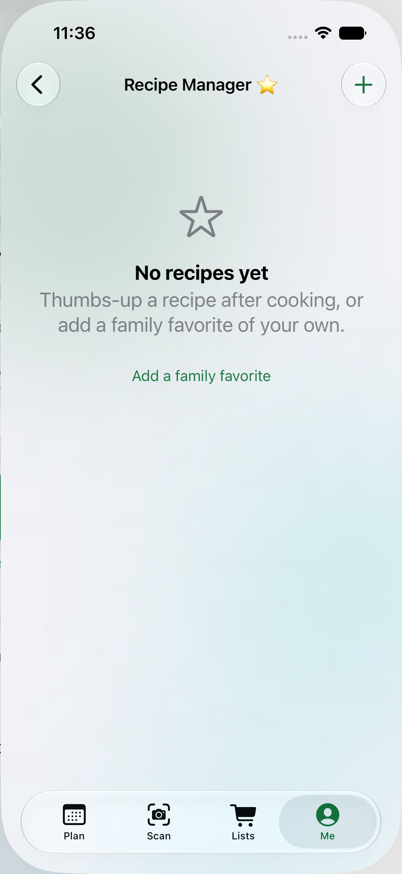
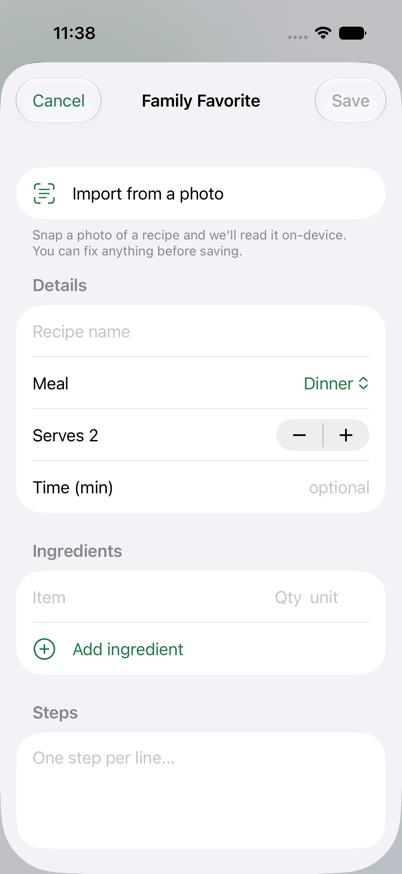
Recipes flagged want again soon get a nudge toward your next generated plan. Tap + to add a Family Favorite by hand, or import one straight from a photo — on-device text recognition reads the photo and, where available, Apple Intelligence structures it into ingredients and steps for you to review before saving.
6. Money — savings & spending
Reached from Me → Savings & spending, this is the budget dashboard: what you've spent, what you've saved, and how accurate the app's own price estimates have been.
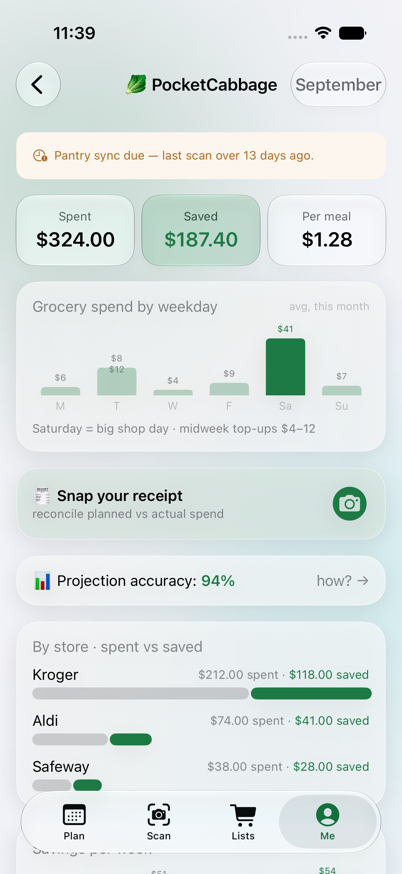
- Spent / Saved / Per meal stat cards for the month.
- Grocery spend by weekday — a bar chart of spending patterns.
- Projection accuracy — how close the app's price estimates have run to what you actually paid.
- By store — spent vs. saved and Savings per week charts.
- Export food costs — writes an Excel workbook of expected vs. actual ingredient costs, dated, with per-ingredient and per-month summaries.
Reconcile a receipt
Snap a photo of a receipt and the app reads its line items, matches them against your planned list, and shows you exactly where the actual price diverged.
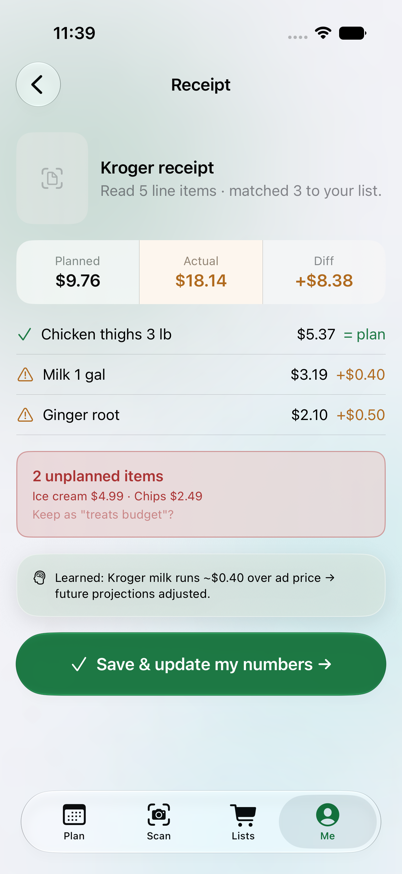
Unplanned items are called out separately, and a Learned banner explains what the app adjusted for next time. Save & update my numbers feeds this back into future price projections.
Savings receipt
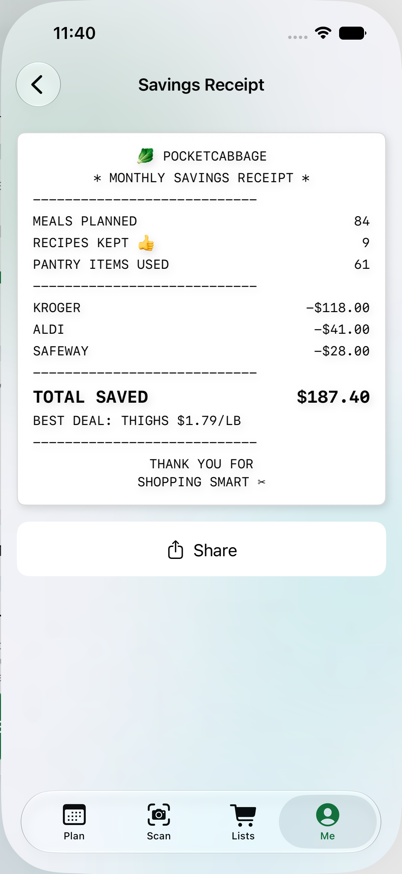
A shareable, till-print-styled monthly summary — meals planned, recipes kept, pantry items used, and dollars saved per store.
Sharper numbers (Insights)
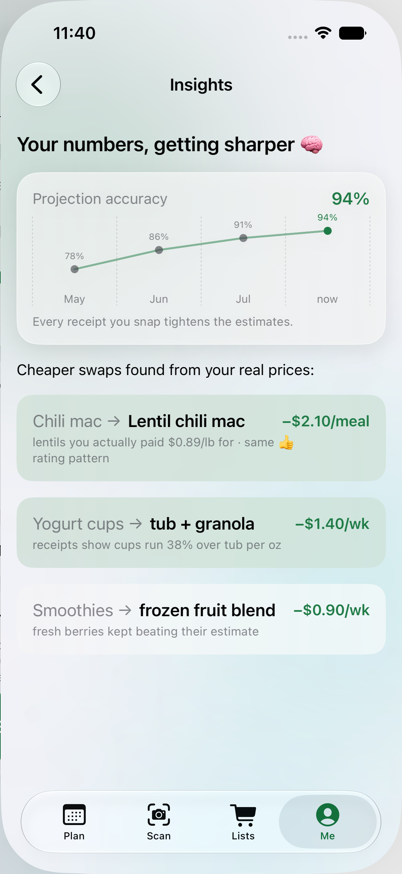
Shows the payoff of scanning receipts over time: a rising accuracy trend, and cheaper-swap suggestions grounded in what you've actually paid.
7. The app menu
The ☰ button in the top-left corner of every main screen opens a single menu with a link to everything in the app, organized by task — handy for jumping straight to a screen that isn't one of the four tabs.
The menu includes Manage inventory — a manual, hand-editable view of everything currently in your pantry, fridge, and freezer, organized by zone. It's the typing counterpart to the camera scans: add, edit, or delete a stored item directly, or launch a camera update from here too.
Also reachable from the menu: Archived plans (everything you've cooked in the last 30 days, searchable by dish or date — swipe a meal left to keep it as a favorite) and the Cost optimizer.
8. Backup & restore
From Me → Backup & restore, export everything the app knows about your household — settings, pantry inventory, saved recipes, scanned receipts, and price history — to a file you keep, in JSON, XML, or Excel format. Restoring a backup adds to what's already on the device; anything already stored is left alone, so it's safe to restore an old backup without wiping out newer data.
9. Tips & troubleshooting
- “App Attest isn't available on this device” — this only appears when running in the iOS Simulator or another environment without real Apple attestation hardware; it does not appear on a real iPhone or iPad.
- A dashed asterisk / “price unknown” next to a cost — estimated prices are marked so you don't mistake a guess for a confirmed receipt or ad price.
- A recipe shows “not safe for your household” — the on-device allergen screen checks the ingredient list against your stated restrictions. Always double-check labels yourself; this is a safety net, not a guarantee.
- Shopping list total doesn't match the plan total — usually means a store's ad expired since the plan was built; the app names the store so the drift doesn't look like a bug. Generate a new week to re-price everything against current ads.